

To fix an email, open a request from the client and press Edit email. If there's no email yet, it reads Add email.
Type the address. If it looks like a typo, Cake suggests a fix under the box.
Save it. Cake asks Use this address? Press Confirm and save.
Note: Rosa's requests at the old address, or with no email, change too. Missed emails that still apply are sent again to the new address.
- An email didn't arrive: The request says how many emails to the address didn't arrive, and Cake emails you too. Press Fix Rosa's address, with your client's name in place of Rosa. Save, and the missed emails that still apply go to the new address.
- Cake won't change the address: If the client's mail service told us they marked one of your emails as spam, the address can't change. Gmail doesn't tell us. Reach them another way first.
To fix a name, pronouns or Instagram, press Edit details on the request or on the client's page. To reach their page, tap the client's name. There, press Edit, then Edit details.
Fix First name, Last name, Pronouns or Instagram.
Save. The change reaches every request from that client except archived ones.
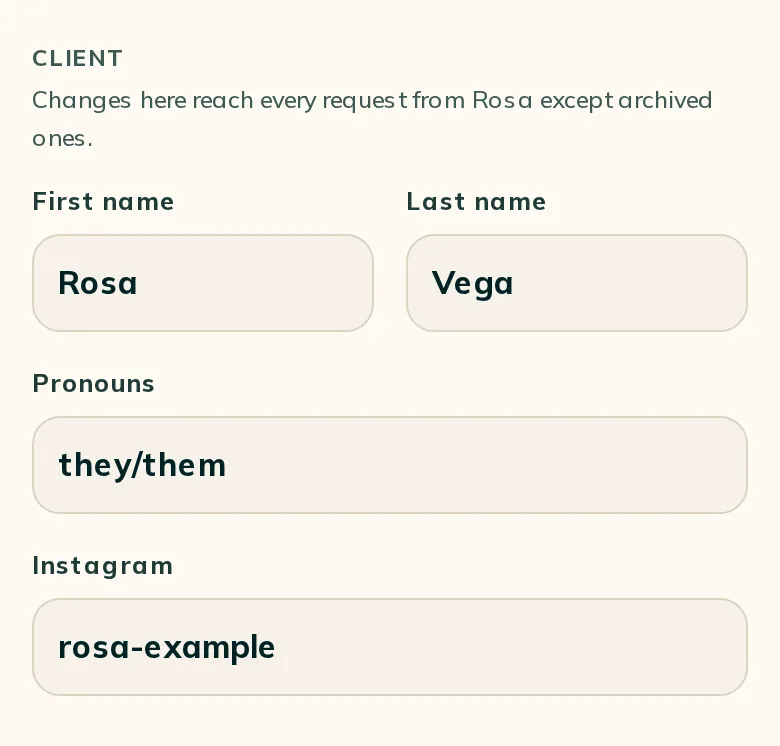
Note: A signed consent form keeps the name it was signed with. The client's page has no email box, so fix an email from a request.
Reference photos are on the request, under Edit details.
Under your references, press × on a photo to take it off, or Add to add one. A request holds up to 12 of yours.
Under Rosa's references, press × to take one off. You can't add to theirs, and what they sent with the request stays as they sent it.
Wait for any photo to finish uploading, then save.
A photo Rosa sends you can go straight onto the request. Open their conversation from your conversation list, then hold or right-click the photo and choose Add to request. The request's own Messages don't have this.
Rosa sees the new details on their link. Nothing is emailed on its own. If you changed the photos or the details of the piece under Edit details, Cake then offers a message that says what changed. Edit it if you like, then press Send to Rosa, or Not now. Fixing a name, pronouns or Instagram sends nothing. A photo you add with Add to request sends nothing.
An edit never changes the quote, the deposit, the times or the consent. A closed request can't be edited, but a client's name can still change from their page.
Write to support@cake.ink or tell us in Discord. A screenshot of the request helps us see what you see.