All product updates
Search lists your clients A to Z and counts your filters
On a computer, Search opens to your clients A to Z, and the Filters button shows a count. Booking settings takes Half day and Full day lengths and rates. Home shows a Take card payments row.
On a computer, open Search and your clients are listed A to Z, with no All and Clients tabs:
- A Filters button sits beside the search box, with a purple badge on its corner that shows how many filters are on.
- Escape, a click outside the box, or Cancel closes Search.
Set Half day and Full day lengths and rates
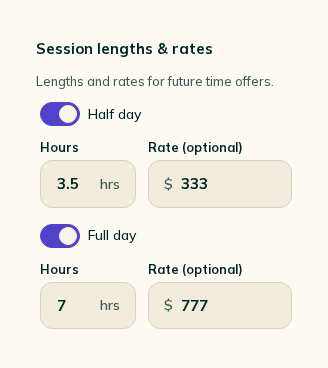
On a computer, Booking settings has Session lengths & rates, under the line "Lengths and rates for future time offers.":
- Half day and Full day each have a switch.
- Turn one on to set its Hours and a Rate (optional).
- Reload and the hours and rate are still there.
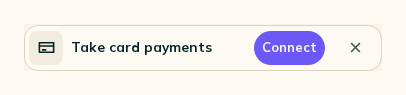
Home shows a Take card payments row
If you haven't started connecting Stripe, Payments reads Not set up and Home shows one row:
- It reads "Take card payments".
- A purple Connect button and a × sit at its right.
Smaller fixes 3 lines
- On a computer, with Policies & booking or FAQs open on your page, the Books open chip, the Request a booking button and the About pill stay clear of the text.
- A note on your booking form has a "Checkbox required" switch. Turn it on and a "What the box says" field takes the box's words.
- The tab icon on your Cake page is now a lime cake on a purple square, in place of the old one.